Introduction
This article provides a step-by-step guide to manually disable the screensaver lock screen setting on the GNOME desktop environment. Follow the instructions below to complete the process using dconf and dconf-editor.
Problem
Users may need to disable the screensaver lock screen setting on their GNOME desktop environment for various reasons, such as preventing interruption during tasks.
Prerequisites
Make sure your system includes the dconf and dconf-editor packages. If you need to install them, run the following command:
sudo dnf install -y dconf dconf-editor
Instructions
Steps to disable the screensaver lock-screen setting
-
Launch dconf-editor
Open the
dconf-editorby running the following command in your terminal:dconf-editorThis action launches the
dconfGUI. -
Navigate to the screensaver settings
In the
dconf-editor, navigate to the screensaver settings by following this path:org > gnome > desktop > screensaver -
Edit lock screen setting
- Click on
lock-enabled. This opens a screen where you can change the value. - Toggle the
Use default valueto off. - Change the
Custom valuetofalse. - Click the blue check-mark at the bottom to confirm your changes.
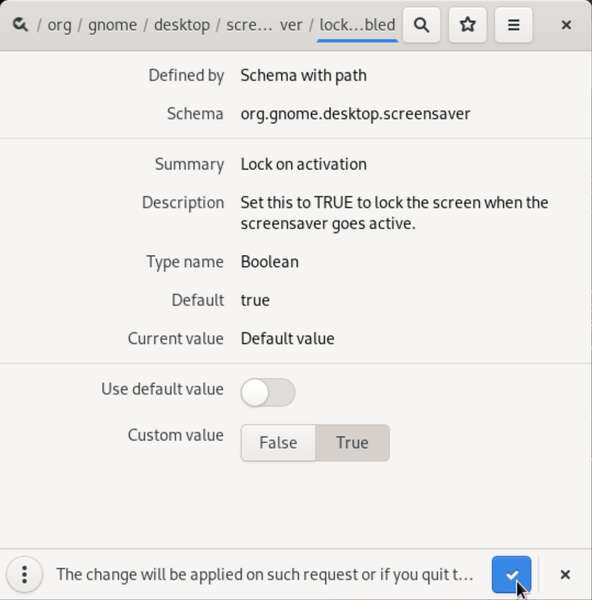
- Click on
-
Handling errors
If you encounter the following error in your terminal while attempting to save the settings:
(dconf-editor:17050): dconf-WARNING **: [time]: failed to commit changes to dconf: Failed to execute child process "dbus-launch" (No such file or directory)This indicates that the
dbus-launchutility is missing. Resolve this by exiting the GUI and installing thedbus-x11package:sudo dnf install -y dbus-x11After installing, relaunch the GUI and attempt to save your changes again. If the error persists, reboot the system.
Validate the changes
Verify that the lock screen is disabled by running one of the following commands:
gsettings get org.gnome.desktop.screensaver lock-enabled
or
dconf read /org/gnome/desktop/screensaver/lock-enabled
These commands should return false, indicating that the lock screen has been disabled.
Conclusion
Follow these steps to manually disable the screensaver lock screen setting on your GNOME desktop environment. If you encounter any issues, verify that you have installed and correctly configured all required packages.